
Harmony experience with Apple TV
It's compatible with all Harmony products
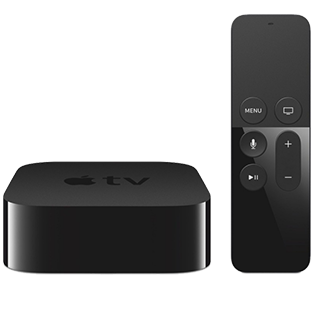
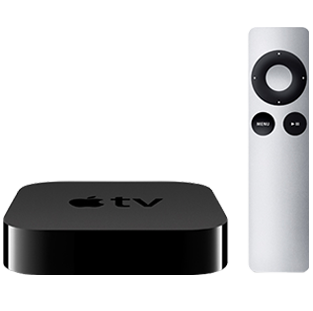
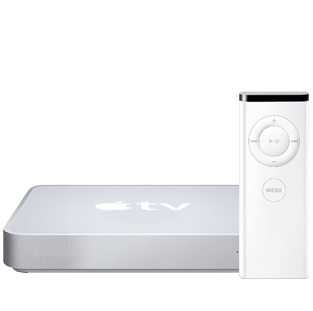
Setup
Add Apple TV to your Harmony setup
- Launch the Harmony app.
- Select MENU, then Harmony Setup > Add/Edit Devices & Activities.
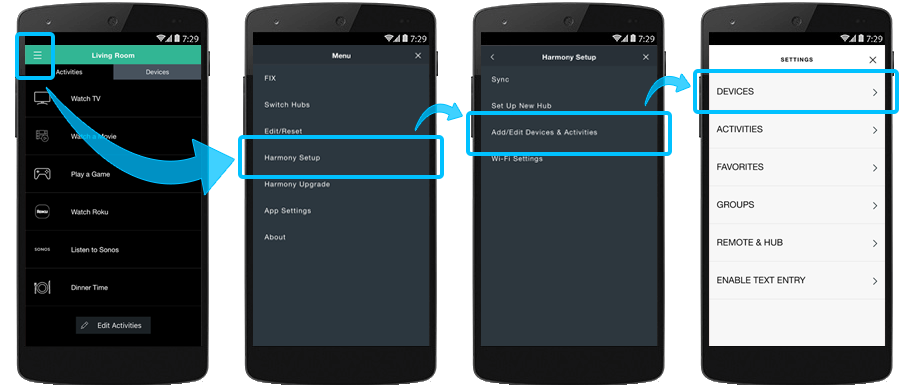
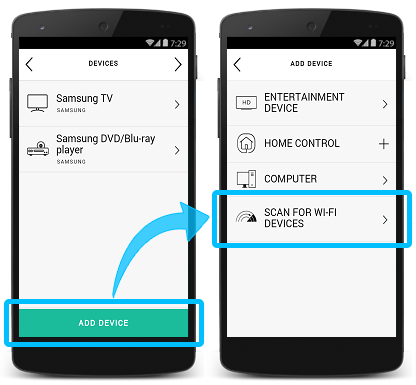
- Select DEVICES and then press the ADD DEVICE button at the bottom of the screen.
- Select SCAN FOR WI-FI DEVICES and Harmony will search for Apple TVs on your home Wi‑Fi network.
- Once added, Harmony will prompt you to create an Activity. Select Yes.
- Continue through the series of questions to build your Watch Apple TV Activity.
- Follow the on screen guide to select your proper Activity devices and inputs.
- Once created, Harmony will be able to control your Apple TV.
- You may also choose to enable text and voice entry.
Want to enable voice and text entry on Apple TV?
Harmony hub‑based products allow you to use the Harmony app for text entry.
Harmony hub will send text commands to Apple TV using Bluetooth. To enable this you must first pair the two devices:
- Using the Harmony app
- Select ENABLE TEXT ENTRY and select your Watch Apple TV Activity. Harmony hub is now in pairing mode.
- Using your Apple TV remote, select Settings > General > Bluetooth. Apple TV is now in pairing mode.
Harmony and Apple TV should pair after several seconds. If you're having problems pairing, try removing any existing keyboard pairings from Apple TV by selecting it, clicking OK, and selecting Forget this device.
- Launch the MyHarmony desktop software and sign into your account.
- Select your Harmony product from the Remote Gallery screen.
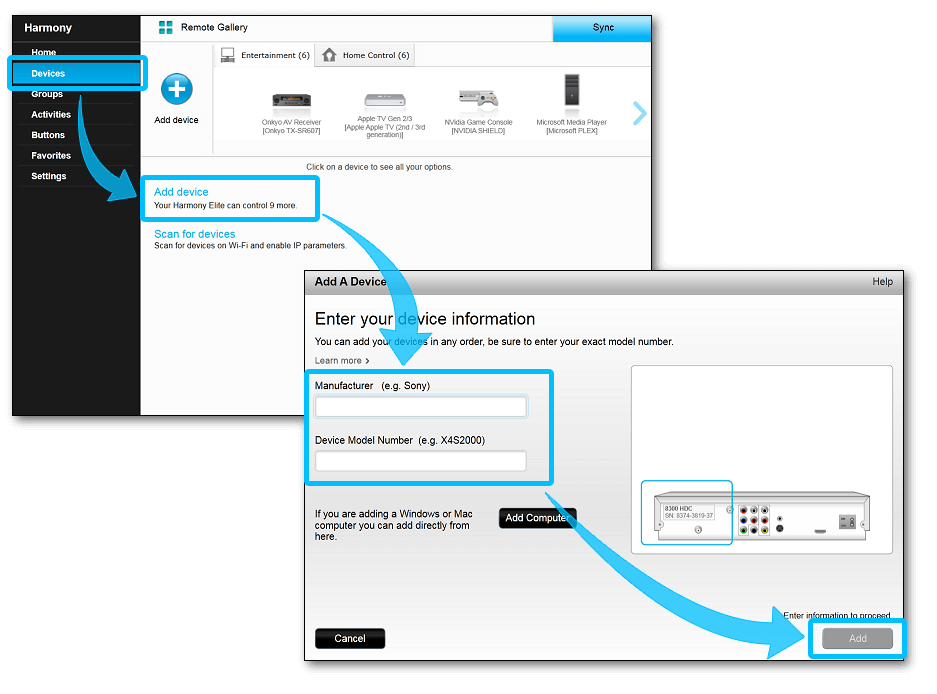
- Select the Devices tab on the left side of the screen.
- Select the Add device button.
- Enter the manufacturer Apple and model number Apple TV.
- You will be prompted to select your Apple TV generation.
- Select the Activities tab on the left side of the screen.
- Select the Add Activity button.
- Select the Watch Apple TV Activity type and select Next.
- Continue through the series of questions to build your Activity.
- Once done, remember to sync your remote after making any changes.
Create a Watch Apple TV Activity (recommended)
- Launch the MyHarmony desktop software and sign into your account.
- Select your Harmony product from the Remote Gallery screen.
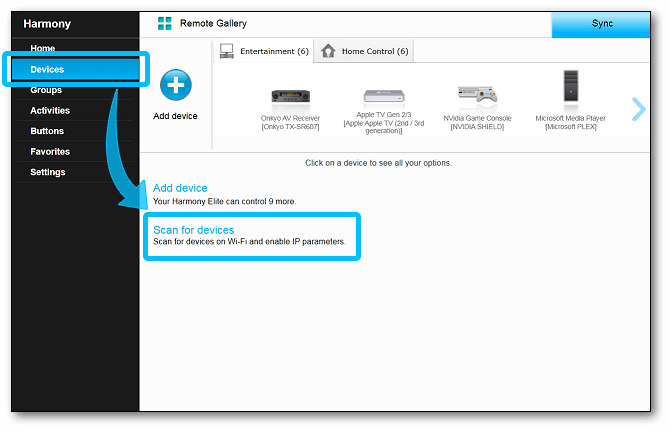
- Select the Devices tab on the left side of the screen.
- Select the Scan for devices button near the center of the page.
- You will be prompted to connect your Harmony to your computer with the provided USB cable. Harmony will scan your home Wi‑Fi network for Apple TV. Ensure both Apple TV and Harmony hub are on the same Wi‑Fi network.
- Select the Activities tab on the left side of the screen.
- Select the Add Activity button.
- Select the Watch Apple TV Activity type and select Next.
- Continue through the series of questions to build your Activity.
- Once done, remember to sync your remote after making any changes.
Create a Watch Apple TV Activity (recommended)
- Launch the Harmony app and sign into your account.
- Select your Harmony remote, followed by DEVICES > ADD DEVICE.
- Enter manufacturer Apple and model Apple TV.
- Finally, select the sync icon in the upper right corner of the settings menu, followed by SYNC NOW.
Control
Harmony hub‑based products may also use the Harmony app
- Keyboard allows you to easily enter text or use voice search. Use this mode when your Apple TV displays a keyboard on the television screen.
- Control icon lists commonly used Apple TV buttons.
- Gestures allows you to control your Activity using simple swipe gestures over your phone screen. For example, swiping up/down will change your volume and left/right can rewind and fast forward.
Netflix
Direction Pad Navigation will navigate the Netflix app.
Media Keys such as Play, Pause, Stop, Fast-Forward and Rewind commands work.
During playback pressing the up arrow twice will bring up the item description. Holding OK will bring up the subtitles and AirPlay speaker options.
Text entry is possible using the Harmony app.
Hulu
Direction Pad Navigation will navigate the Hulu app.
Media Keys such as Play, Pause, Stop, Fast-Forward and Rewind commands work.
During playback pressing the up arrow twice will bring up the item description. Holding OK will bring up the subtitles and AirPlay speaker options.
Text entry is possible using the Harmony app.
YouTube
Direction Pad Navigation will navigate the YouTube app.
Media Keys such as Play, Pause, Stop, Fast-Forward and Rewind commands work.
During playback pressing the up arrow twice will bring up the item description. Holding OK will bring up the subtitles and AirPlay speaker options.
Text entry is possible using the Harmony app.
Vevo
Direction Pad Navigation will navigate the Vevo app.
Media Keys such as Play, Pause, Stop, Fast-Forward and Rewind commands work.
During playback pressing the up arrow twice will bring up the item description. Holding OK will bring up the subtitles and AirPlay speaker options.
Text entry is possible using the Harmony app.
Other Apps
The behavior of other apps may vary depending on the app's design.
Customize
 Adjust the physical buttons on your remote
Harmony has already optimized the buttons on your remote; however you can further customize these buttons depending on your preference.
 Add, remove or rename commands on your remotes screen
Harmony displays commands specific to your Watch Apple TV Activity on your remote screen. You can add, remove or rename them.
 Customize Harmony app buttons
You can view common Apple TV commands on your phone or tablet screen. You can add, remove or rearrange these commands.
 Set your own swipe gestures
By default, swiping up or down on the gestures screen will change volume. There are 22 gestures in total, view and customize them from the app.
FAQs
Apple TV does not respond to any commands sent from Harmony
Apple TV may sometimes come linked with a specific Apple remote and will ignore commands sent from any other Apple or Harmony remote control. To allow Harmony to interact with your Apple TV, you must send an "unlink" (or "unpair") command. You may send this using your Harmony remote.
Using a Harmony remote
- Navigate to the Devices menu on your Harmony remote LCD screen.
- Select Apple TV, and while pointing your remote at your Apple TV box, select Unpair.
- Your Apple TV should now respond to all commands sent from Harmony.
Using the Harmony app
- Launch the Harmony app
- Ensuring your Harmony hub and Apple TV are within visible range of each other and then select Unpair.
- Your Apple TV should now respond to all commands sent from Harmony.
I would like to use Bluetooth to control Apple TV generation 4 or 4k
Control your Apple TV with your Harmony Remote via Bluetooth you can add your Apple TV as a device using manufacturer Harmony Pro and model number BT Apple TV 4. This will allow additional features such as the TV/Home button and sleep mode.
TV/Home button:
The Home button provides additional functionality by allowing you to directly return to the home screen and launch the App Switcher when pressing twice.
Sleep mode:
The Harmony will automatically put the Apple TV to sleep when hitting the of button or switching activities. This default behavior can be changed by modifying the default power settings. For more information, see: Changing when a device powers on or off
Some of my devices power off when ending my Apple TV Activity
Apple TV generation 4 (2015) uses a feature called HDMI CEC which can turn on or off compatible TVs and change their inputs automatically. This may conflict with the way Harmony controls your devices, so we recommend it be disabled.
From the Apple TV generation 4, access the main menu and select Settings > Remotes and devices > Control TVs and Receivers, ensure this option is set to Off.
FAQs
Some of my devices power off when ending my Apple TV Activity
Apple TV generation 4 (2015) uses a feature called HDMI CEC which can turn on or off compatible TVs and change their inputs automatically. This may conflict with the way Harmony controls your devices, so we recommend it be disabled.
From the Apple TV generation 4, access the main menu and select Settings > Remotes and devices > Control TVs and Receivers, ensure this option is set to Off.
Setup
Adding Apple TV to your Harmony setup
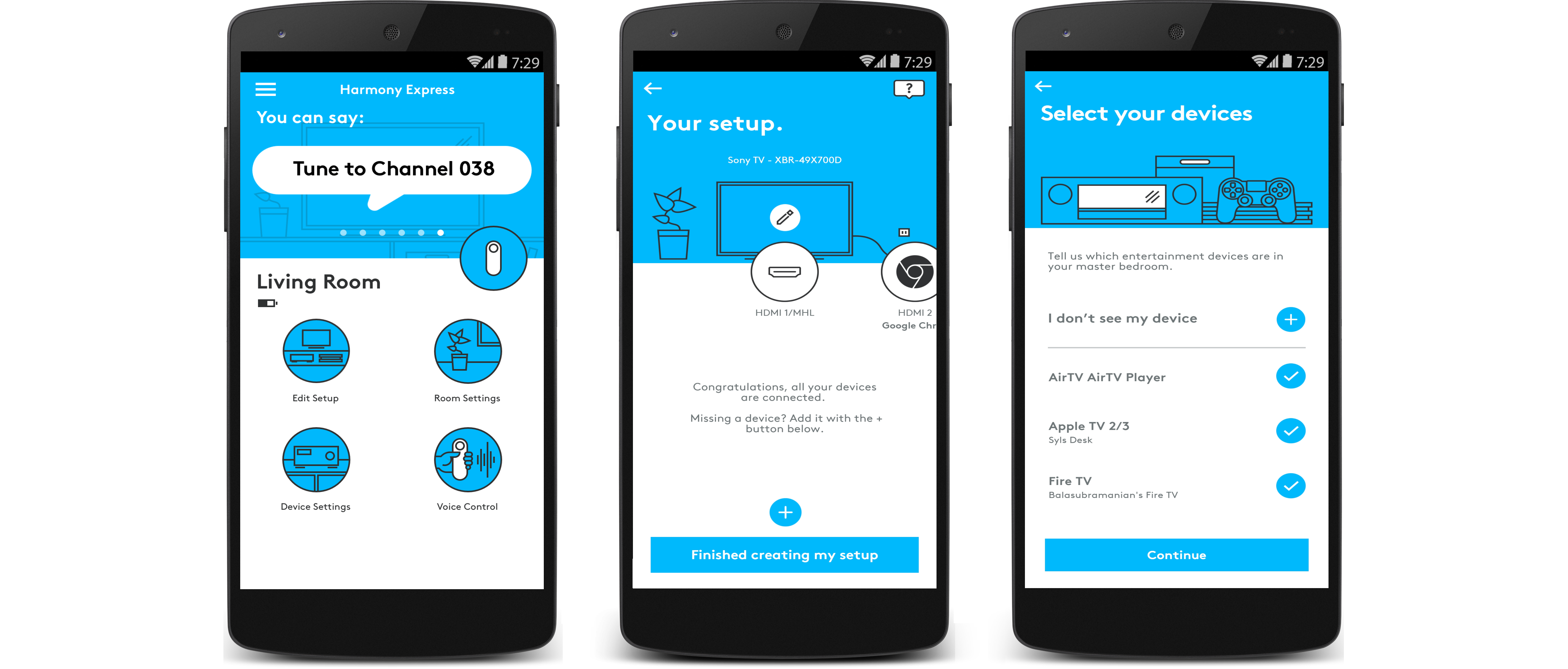
- Launch the Harmony Express app and tap Edit Setup.
- Next, tap + to perform a Wi‑Fi scan, and select your device.
- If your device isn't found, ensure it's on the same Wi-Fi network as Harmony Express.
- If you still have issues, reboot your device and router then try again.
- Tap Continue and follow the on-screen prompts.
Control
Voice
You can use your voice to send commands such as turn on, turn off, and more. Tap What to say in the Harmony Express app to see sample commands for your device.
For more information on how to use your voice with Harmony Express, see: Voice commands on Harmony Express
Harmony Express allows you to use your voice to launch apps with Apple TV 4k and Apple TV 4th generation. During setup, for each app (Netflix, YouTube, etc.), you will be asked which device should be used to launch it.
Remote
Although Harmony has already mapped default commands to your remote buttons, you have the ability to assign custom commands to them. For more information, see: Customizing physical buttons on your remote
Supported apps
Amazon
Direction Pad Navigation will navigate the Amazon app.
Media Keys such as Play, Pause, Stop, FastForward and Rewind commands work.
Netflix
Direction Pad Navigation will navigate the Netflix app.
Media Keys such as Play, Pause, Stop, FastForward and Rewind commands work. Netflix allows you to move a frame forward or backward using the direction left and right arrows.
Hulu
Direction Pad Navigation will navigate the Hulu app.
Media Keys such as Play, Pause, Stop, FastForward and Rewind commands work. Hulu allows you to skip 10 seconds forward or back using the direction left and right arrows.
YouTube
Direction Pad Navigation will navigate the YouTube app.
Media Keys such as Play, Pause, Stop, FastForward and Rewind commands work. YouTube allows you to navigate between videos using the Direction Right and Left commands.
Browser
Direction Pad Navigation will navigate the Browser app.
Media Keys are not used within the Browser app.
Other apps
The behavior of other apps may vary depending on the app's design.
Integration details
Hub‑based remotes
Harmony Express remotes
Harmony Infrared remotes
Harmony hub‑based remotes also allow text entry* using your voice or from the keyboard in the Harmony app.
Apple TV may be controlled using infrared (IR) signals that are sent directly from your Harmony remote.
Harmony uses your Wi-Fi network to launch apps (e.g., YouTube or Netflix). For device control, such as adjusting the volume or changing the channel, Harmony uses infrared (IR) signals.
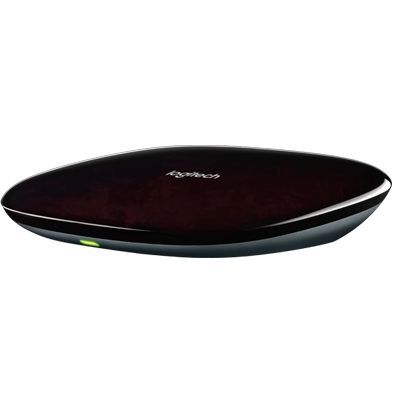
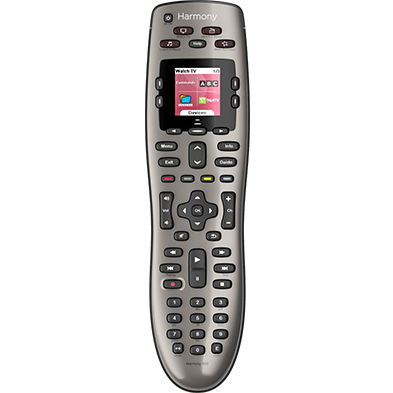
Select your remote
We need to know which type of remote you have in order to provide you the correct instructions. Please select from one of the options below in order to get started.
Incompatible Remote
Instructions on this page are not relevant for the Harmony remote you've selected.
← GO BACK

 Dutch
Dutch English
 French
 German
 Italian
 Spanish